History, analysis and account
How do I remove a set that was added by mistake?
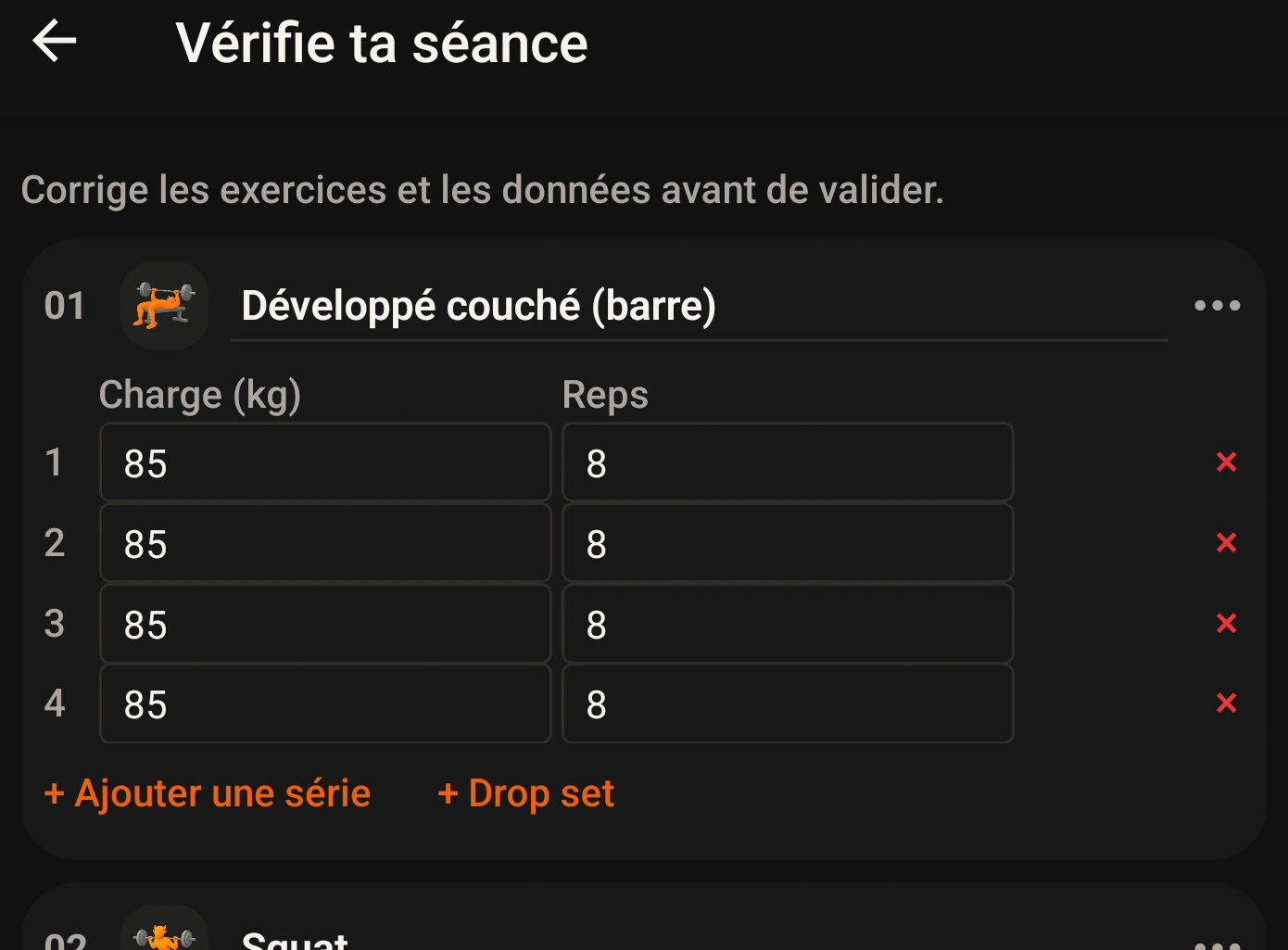
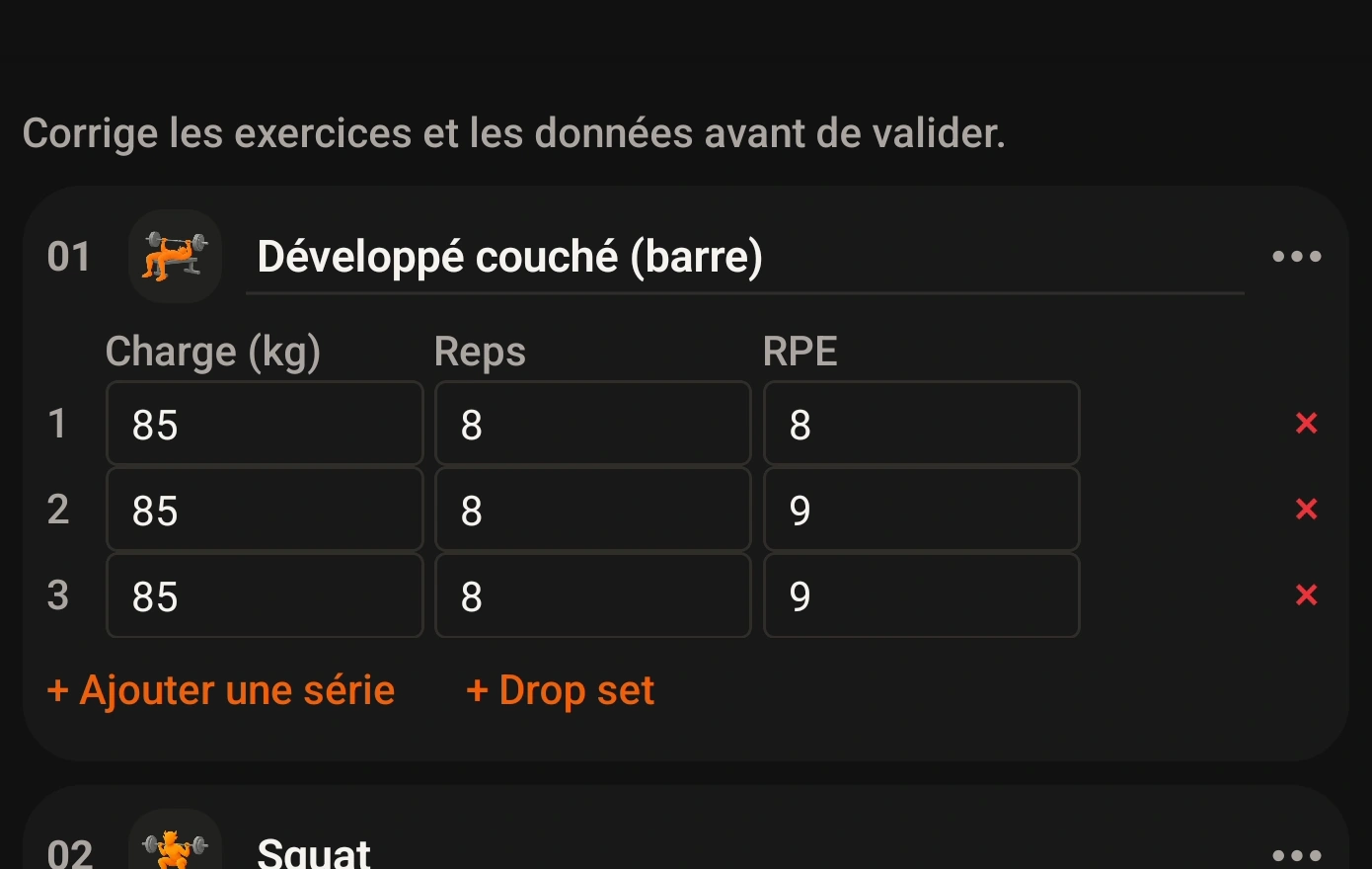
On the workout review screen, find the exercise and tap the small red X to the right of the unwanted set. That row disappears. Check the remaining sets and total before tapping Finish and save.
Screenshots
App interface screenshots and illustrated Grunty store visuals. Tap an image to enlarge it.Some older screenshots display French labels.
Practical tip
Do not confuse the red X on a set with Delete exercise, which removes the entire movement. The screenshot shows a bench press reduced from four sets to three.
Important / limitations
This demonstration shows a correction before saving, not deletion from a saved workout. Open the workout in History to edit it after saving.
Content reviewed against source code on .